Skip to main content
Edit / Modify Line Item
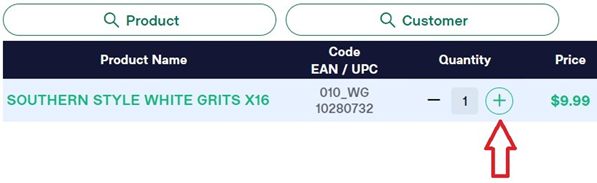
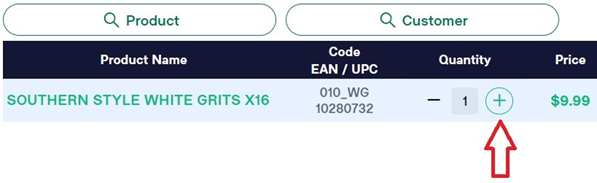
Change the quantity of a line item
- On the line item you wish to change the quantity, select the plus or minus symbol. If the quantity is already 1, pressing the minus symbol will remove the line item from the cart.
- *You may also highlight the quantity and manually type a new quantity into this field.
Delete a Line Item
- Select the trash can icon on the right side of the product line. *It may take a few seconds for the line to be deleted.
Add notes to a line item: (19)
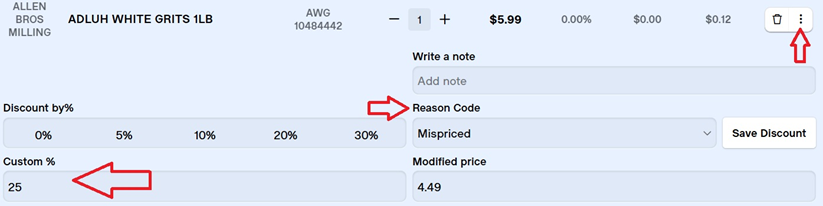
- Select the three dots on the right side of the product line. This opens a drop down with a notes field under the product. The note added will also be visible on the receipt directly under the product.
Make a % discount to a line item with required reason code: (20)
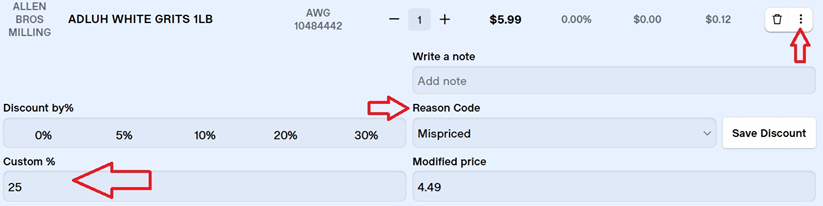
- Select the three dots icon on the right side of the product line. This opens a drop-down menu. You may select one of the default % off or type in your desired percentage off in the “Custom %” field. After choosing your percentage off you will need to select an option from the Reason Code drop down menu AND select Save Discount to apply the discount percentage to the item.
- You can review your discount on the product line under Price, Discount %, and $ Discount
- *Discounts of a certain percentage may have to be approved by a manager.
Enter custom price $ (+ or -) to a line item: (21)
FollowSelect the stepsthree abovedots icon on the right side of the product line. BUT chooseChoose the “Modified Price” field and enter your desired price.- You will still need to select a Reason Code and select Save Discount
- *This will be used mostly by managers in rare situations
- *Note that changing or increasing a price may cause a negative discount on the POS (this WILL NOT be visible to the guest on the display tablet or their receipt)
- Select the three dots icon on the right side of the product line.
- Select “Tax Rate” drop down menu. This is an even rarer situation and will be limited to management.