
Opening the Register
Opening the POS (Erply): (3)
Locate the Erply login page. This will be a shortcut via the desktop, or a bookmark within the browser.
Login using unique pin: (4)
Click Login with PIN while on the login screen. Enter your unique 6-digit PIN (this is not your 4-digit employee ID) and click Login with PIN.
Choosing Location: (5)
Select your store location from the list. (sales associates will likely only see their location with their assigned PIN.)
*This step will be skipped on the test registers
Choosing Register: (6)
After choosing your store, select which register you will be using. Machine IDs should be located either on the monitor, PC, or in the register pit near the PC/Monitor.
Example: Monitor/PC is labeled 114-1; selections are 114-1, 114-2, 114-3, 114-4, 114-5. The associate should always select the number that matches the machine they will be working at.
*This step will be skipped on the test registers
Opening the Day: (7)
Upon logging in, you will see Opening the Day in the POS.
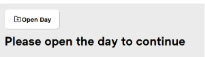
After clicking Open Day, you will be directed to a page to enter your starting amounts. Remember to enter quantities. Example: You have five $5 bills, enter 5, not $25. Click “open day” to finish opening the POS.
*Stores may choose to open the day by simply inputting the total starting cash amount at the bottom of the screen