
Opening the Register
Opening the POS (Erply): (3)
- Locate the Erply login page. This will be a shortcut via the desktop, or a bookmark within the browser.
Login using unique pin: (4)
- Click Login with PIN while on the login screen. Enter your unique 6-digit PIN (this is not your 4-digit employee ID) and click Login with PIN.
Choosing Location: (5)
- Select your store location from the list. (sales associates will likely only see their location with their assigned PIN.)
*This step will be skipped on the test registers
Choosing Register: (6)
- After choosing your store, select which register you will be using. Machine IDs should be located on the monitor, on the PC, or near the PC/Monitor.
Example: Monitor/PC is labeled 114-1; selections are 114-1, 114-2, 114-3, 114-4, 114-5. The associate should always select the number that matches the machine they will be working at.
*This step will be skipped on the test registers
Opening the Day: (7)
- Upon logging in, you will see Opening the Day in the POS.
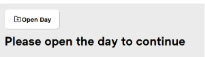
After clicking Open Day, you will be directed to a page to enter your starting amounts. Remember to enter quantities.
Example: You have five $5 bills, enter 5, not $25. Click “open day” to finish opening the POS.
*Stores may choose to open the day by simply inputting the total starting cash amount at the bottom of the screen
Switching
Users:
(8)
- When using the POS, only perform operations while signed in with your PIN. To switch users, click the Switch User button located at the top right of the screen. Enter your PIN to return to the POS screen