
Receipts
Select the appropriate receipt option(s) after taking payment for the transaction.
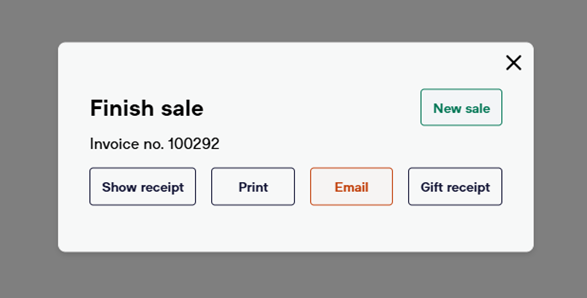
Show Receipt
Select Show receipt to view a preview of the receipt.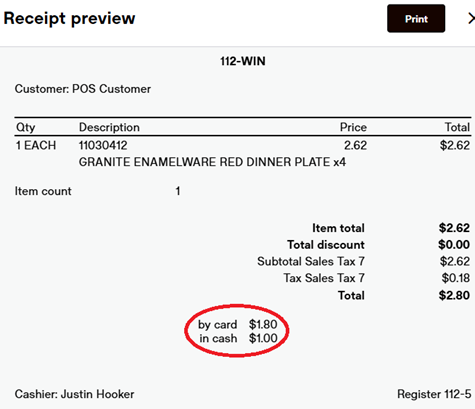
Print Receipt
Select Print to print a receipt for the entire transaction.
Email Receipt
Select Email to send a digital receipt to the provided email. *Be extra careful to key in the email accurately.
Gift Receipt
Select Gift receipt to print or email a receipt without price info.
- Select the Item(s) to be included on the receipt or select the box in the header row to select all items.
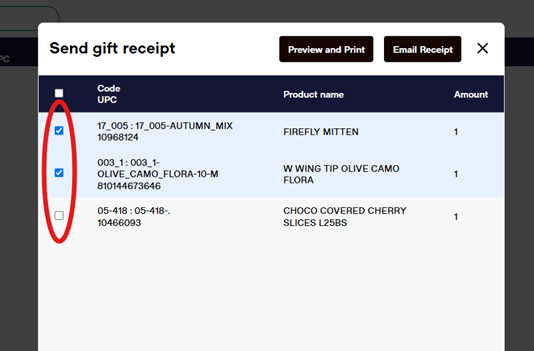
- Choose Preview and Print or Email Receipt.
Search Previous Receipts
This function allows for quick retrieval of receipts, whether you need a duplicate receipt for a recent transaction or are searching for an older receipt based on guest-provided details such as total amount, location, items purchased, date, etc.
From the sales screen select “Recent Sales”. This will bring up a live list of all the recent sales. This list should be auto selected to show your store only, though you can search other stores as well. If you just did the transaction and are printing a duplicate, your receipt number will be at (or near) the top of the list. If not, use the date range option to narrow down your search. *Date and total paid will be crucial details if you are looking up an older receipt, along with any products purchased and the last four digits of the guest's card. If you are using any of this search criteria, remember to select the “show” button to update your list.
Once you think you have the correct receipt line, select the small printer icon on the right side of the line (This will allow you to see much more specific information: salesperson, register, items purchased, etc.)
When you have successfully located the correct receipt, you can now select and print.
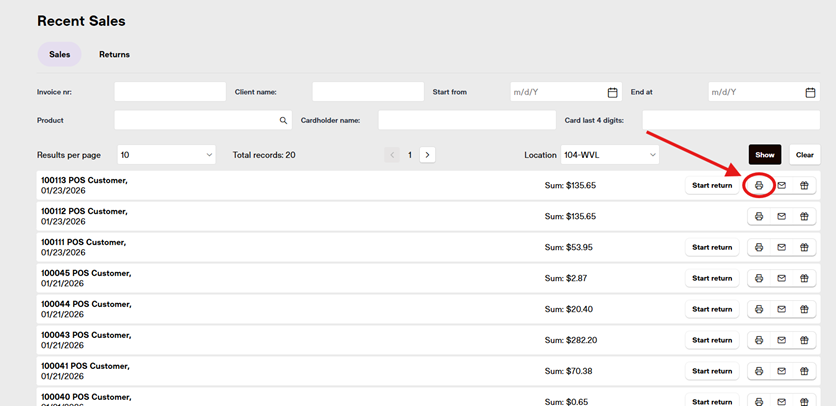
This function allows for quick retrieval of receipts, whether you need a duplicate receipt for a recent transaction or are searching for an older receipt based on guest-provided details such as total amount, location, items purchased, date, etc.
1.
- From the sales screen, select
“RecentSales”Sales.2. - The list displayed will automatically show transactions from your store; you can search other stores if needed.
3. - Recent sales are prioritized; if the transaction was recent, the receipt number is likely near the top.
4. - For older receipts, narrow your search using the date range option.
5. - When searching older receipts, important details include the date, total paid, products purchased, and the last four digits of the guest's card.
6. - After entering search criteria, click the “show” button to update the list.
- Selecting and Printing a Receipt:
7. - Locate the correct receipt line from the list.
8. - Click the small printer icon on the right side of the line to view detailed information such as salesperson, register, and items purchased.
- Select
9. Once the correct receipt is identified, select it for printing.