Saved Searches
Navigate to Saved Searches
- Hover your mouse over Reports>Saved Searches
- Select All Saved Searches from the popup menu
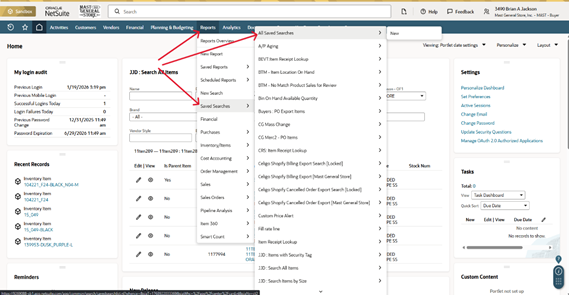
- You will find a list of all created Saved Searches in the new window.
- Here you can find all the Saved Searches that Josh has created
- You can add a new filter for this list
- Click Edit View
- Then click Available Filters
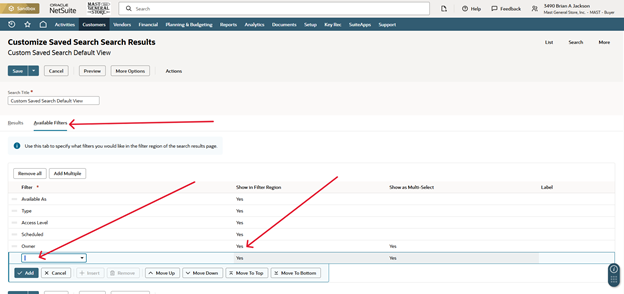
- Type in Owner in the field, located at the bottom of the list
- Make sure that Yes is present under Show in Filter Region column
- Type in Owner in the field, located at the bottom of the list
You can now click Save
- This will add a new filter to the All Save Searches list, where you can find Josh’s Name
Creating a New Saved Search
- Click New Saved Search button, located at the top of the Saved Searches list
- Or go to Reports>New Search
- Or go to Reports>Saved Searches>New Search
- Either will take you to a new screen
- Or go to Reports>Saved Searches>New Search
- Or go to Reports>New Search
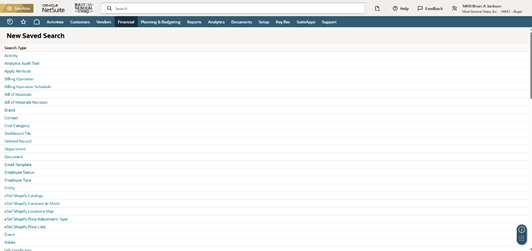
- Find Item, listed toward the middle
- This will take you to a new screen
- Here you can create your own Saved Search
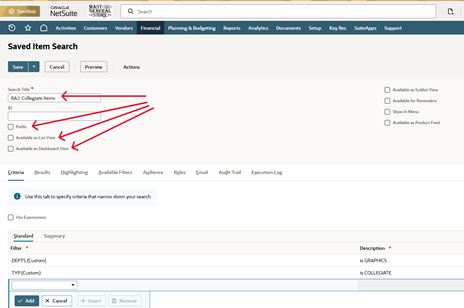
- First create a name for the Saved Search
Example: BAJ: Collegiate Items
- Make sure to check:
- Public
- Available as List View
- Available as Dashboard View
- Make sure to check:
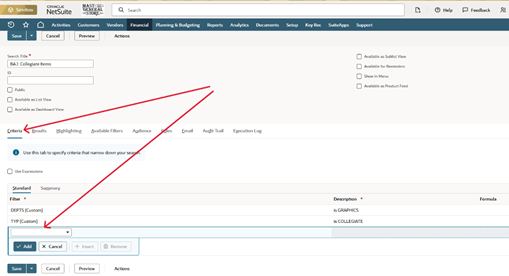
- Here you can set up Criteria
Criteria are preset filters that will filter down your list automatically
- Examples:
- Dept
- Typ
- Subtyp_1
- Etc.
- Examples:
- First create a name for the Saved Search
- Next we need to set up the Results
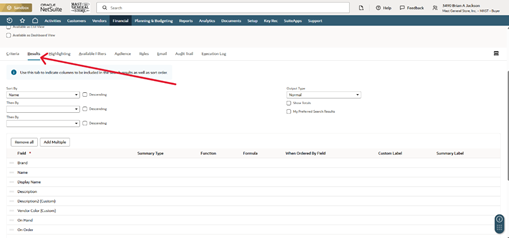
You can also have the Results sorted by three (3) categories
- Examples:
- Name
- On Hand
- Base Price
This will be what shows when you search for items
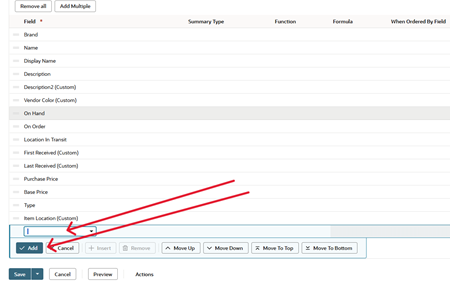
- This are the fields that I use in my search:
- Brand
- Name
- Display Name
- Description
- Description 2 (Custom)
- Vendor Color (Custom)
- On Hand
- On Order
- Location In Transit
- First Received (Custom)
- Last Received (Custom)
- Purchase Price
- Base Price
- Item Location
- Next We will set up Available Filters
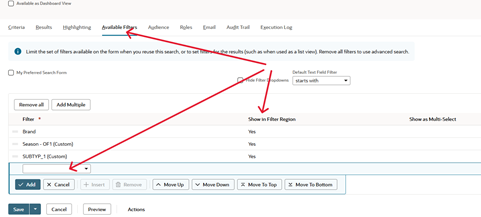
- Add the filters that you wish to have at the top of the Saved Search
- Make sure that you have checked the box, located under the Show in Filter Region column
I would recommend that one filter is: Preferred Vendor
- This will help filter your vendors
- You now should be able to Save & Run