Add product to transaction by using a barcode scanner:(9)
While on the main POS screen, scan an item’s barcode to add it to the POS. (Note that there is no barcode field like in Stratus. If you are on the main POS screen, scanning with a scanner should add the item to the POS.)
The most recent item scanned appears at the TOP of the screen
Manually enter barcode information when the barcode is “unscannable”: (10)
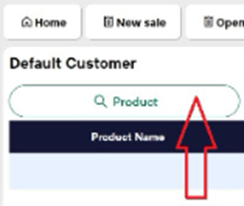
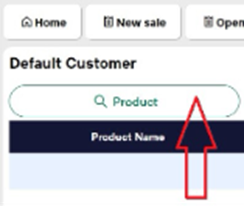
Select the Product button within Erply POS.
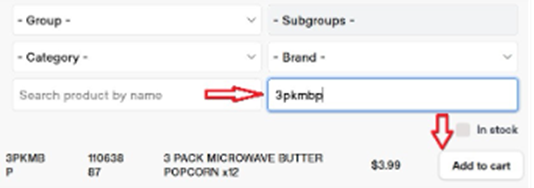
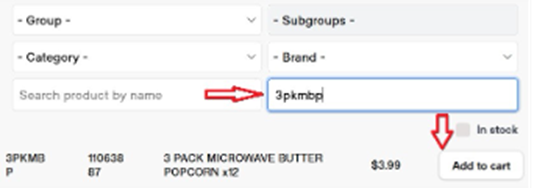
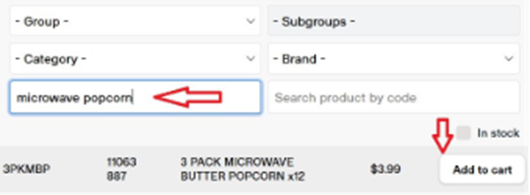
Manually enter the Style Number OR Barcode into the “Search Product by Code” field.
The system will automatically display the product details, and you can click “add to cart”once you have found the desired item. If you type the exact barcode, the item will automatically be added to the POS screen.
Add product to transaction by using a manual “look up” process: (11)
Select the Product button within Erply POS.
In the “Search Product by Name” field, type the description of the product you are searching for.
You can use the “Group” and “Subgroup” options to narrow your search.
*If you select “Group” you MUST select a “Subgroup”
Once located, click “add to cart.”
Use “Quick Keys” button to add single or multiple line items to the transaction: (12)
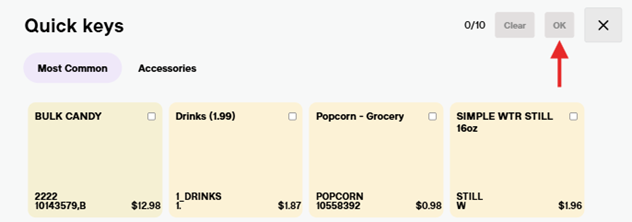
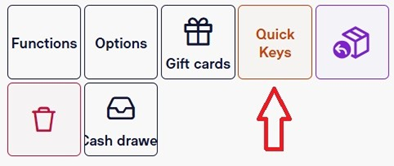
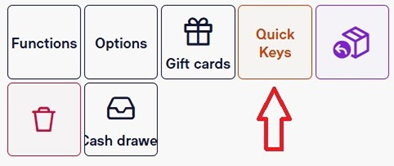
On the lower right of the screen, locate the Quick Keys button. Once selected you can search for the item by department etc. (Quick key items may have images to better help identify products). After finding the item, click anywhere on the item square (this should check the box in the upper right of the product square). You may select more than one quick key at a time. When you are finished selecting quick keys, click the OK button to add to the cart.
*The Quick Key function is limited for now (not many items input yet) but it will be incredibly useful once our products are integrated. Not all items currently in our “Hot Key” book will be transferred into the Quick Key function. If you do not see an item in Quick Keys, you can do a simple product search or refer to the Hot Key Flip Book to find the item’s barcode.
Add an “Unknown” item to a transaction. (currently use XT for taxed items or X for untaxed items): (13)
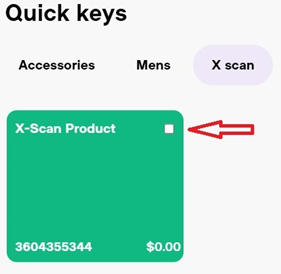
Locate the Quick Keys button on the main POS screen
On the next page, select the X Scan Product check box.
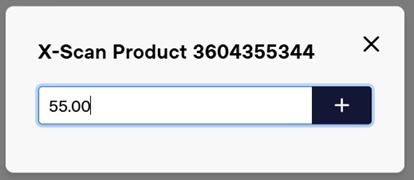
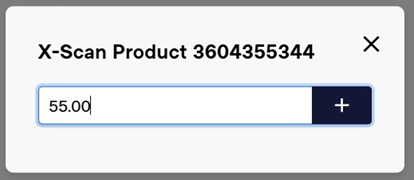
On the next screen, input the price amount of the X-Scan Product, then click the plus symbol.
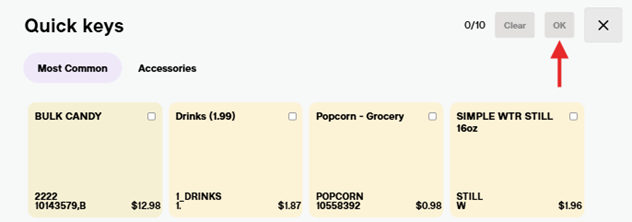
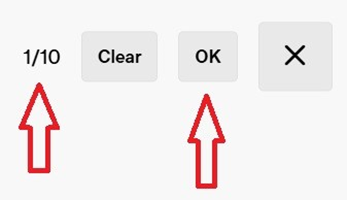
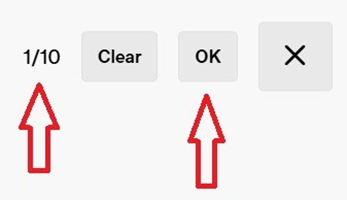
Once the price is added, you will see the top right of the window update to “1/10 items”. Click the OK button to add the product to the POS.
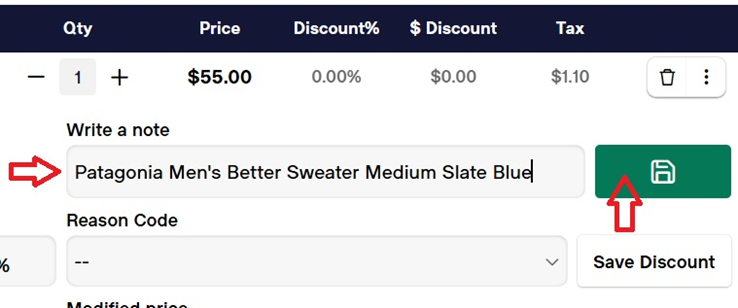
On the POS screen, click the three dots beside the trash icon on the line item.
On the screen that expands, input a description of the item you are selling in the “Write a Note” field, and click the save button.
*The buying team will be alerted if we use the XT function. They will view the transactionnote and do their best to identify the item and correct our inventory. Please include as much information as possible (details usually found on our product stickers) so that the buyers can easily identify the item.