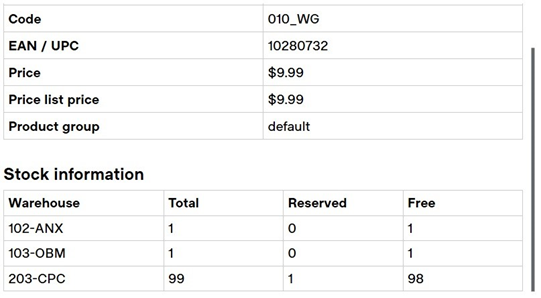
Once an item has been added to the POS, you can click the name of the product to pull up a “Product Details” page. Scrolling to the bottom, you will see current inventory quantities.
*IMPORTANT: This function is currently limited to barcodes and WILL NOT show entire styles. This means that we will not be able to see alternate sizes, colors, etc. without searching specifically for the exact product that we are looking for.
*i.e. When you select a line item to view its “Stock Information” you will only see the availability of that specific size/color at other locations. You will need to return to the product search and locate the exact item (size/color) a guest is requesting before you are able to see stock levels and make a transfer request.
Tips for looking up inventory:
There are a couple of tricks to help with this process. The first is to scan the item that you are trying to find in a different size/color and open the product search window while the product is in the background on the POS. You can then type in the exact product description (still visible beside the product search window). This should bring up all other sizes/colors so that you can add the item you need to the POS and check store availability. *You can also click on the product name and copy/paste the style number from the item that you have in the product search window to achieve the same result.
Note that in our test system product quantities will not reflect current inventory levels.