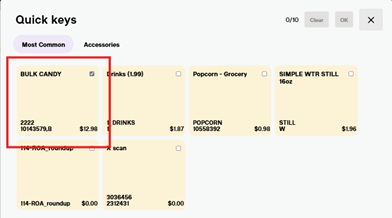
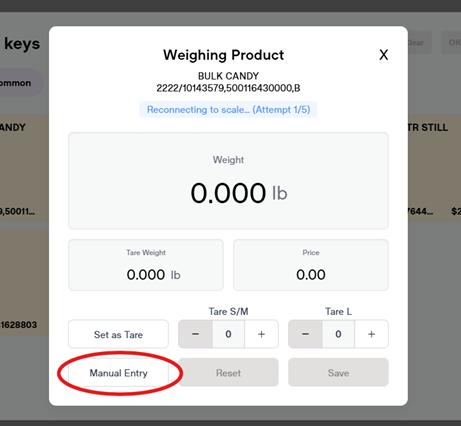
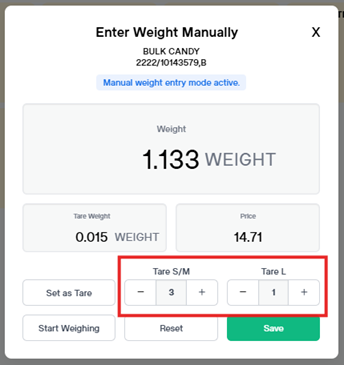
After selecting Bulk Candy, you will have a new screen pop up. If your scale is connected to your register, it will automatically show the weight. If the scale is not connected to your register, you will enter the weight to the thousandth of a pound (You may need to select the “Manual Entry” button before this step).
Accounting for “bag tare” when needed. (16)
After the weight has been entered, you will need to account for the bag tares. We now have two different sizes. Most candies are the S/M size bag tare, and you will select the plus sign for every small bag that you are weighing. You will then select the L tare for every large candy bag that you have weighed. The typical items in the large bags are the belts (watermelon, quattro, strawberry, blue raspberry), laces (strawberry, rainbow), and Twizzlers
Select the save button once you have the weight and the correct tares entered. You will need to select OK in the upperright-hand corner of the Quick Keys menu, once selected you will be returned to the POS screen and the candy will be added to the sale.
*If an error was made ringing the candy (or tares), you can select the small image beside the weight on the line item and re-enter your amounts.