Skip to main content
Mass Update
- Search for BAJ : Item Mass Update
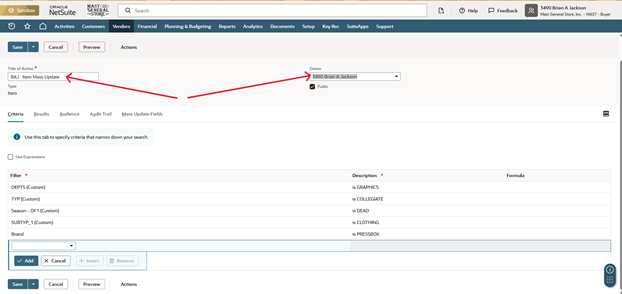
- Change title to (Your Initials) : Item Mass Update
- Change Owner to you
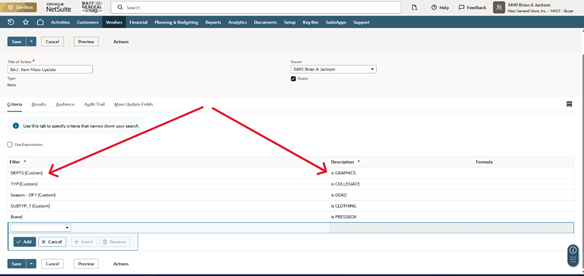
- Criteria
- You can select any number of criteria for the Saved Search to look up
- Ex) DEPTS (Custom), TYP (Custom), Season – OF1, etc
- You will need to define each of the criteria
- Ex) DEPTS (Custom) = Graphics
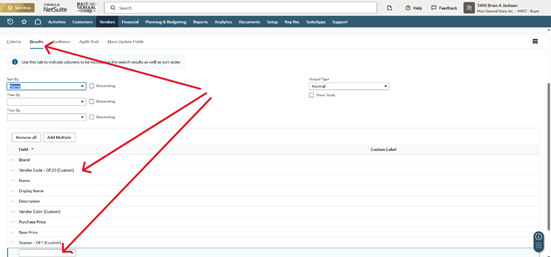
- Results
- Select the results you wish the preview to show you
- Ex) Brand, Vendor Code, Name, Vendor Color, Purchase Price, Base Price, Season – OF1 (Custom)
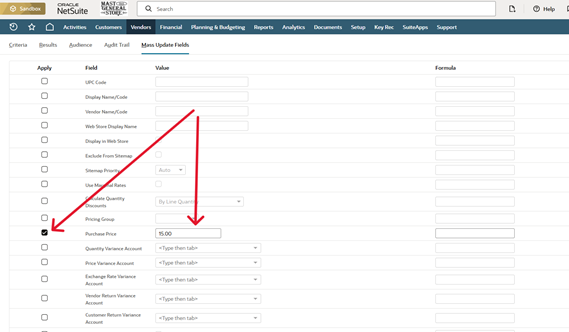
- Mass Update Fields
- Click on the box next to the field that you wish to change FOR ALL ITEMS that will be searched by the Mass Update
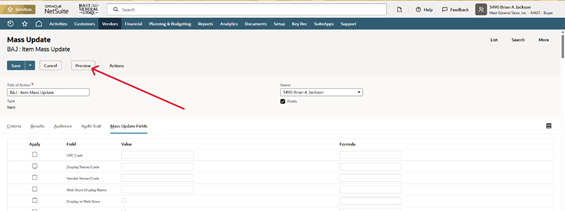
- You will be on the Preview window now
- Here you can see that we are changing the Purchase Price field and the New Value is $15.00, we are also changing the season from DEAD to SO
- You can also click the check mark beside an item to Deselect the item from being changed
- Click Save and the Mass Update will begin the process of changing the information for EVERY ITEM ON THE LIST THAT IS SELECTED